There are lots of things on the to-do list before leaving your office, school, or other workplace before packing up for any extended period. But is there something you have been missing that causes issues that could be prevented?
The answer is likely yes. In this blog, we’re going to go over proper care for your print devices while you are out and away, so that when you return, you are able to jump back with just a few steps and prevent experiencing the jams and other issues that can stem from devices sitting unused.
Common Problems After Time Away
How often do you run into jamming, misfeeding, crinkling, copy quality issues? Do they tend to align with the time you have spent out of the office?
While these problems can have several causes, how your print device is cared for while you are away may be one factor. Taking a few simple steps before leaving can help protect your device, paper, and other supplies while also making your return to the office a little smoother.
Why Does It Matter?
Printers and multifunction devices are designed to be used regularly, but they can still be affected by sitting unused for an extended period. Paper can absorb moisture from the air, dust can accumulate, and changes in temperature or humidity can affect both the paper and the device.
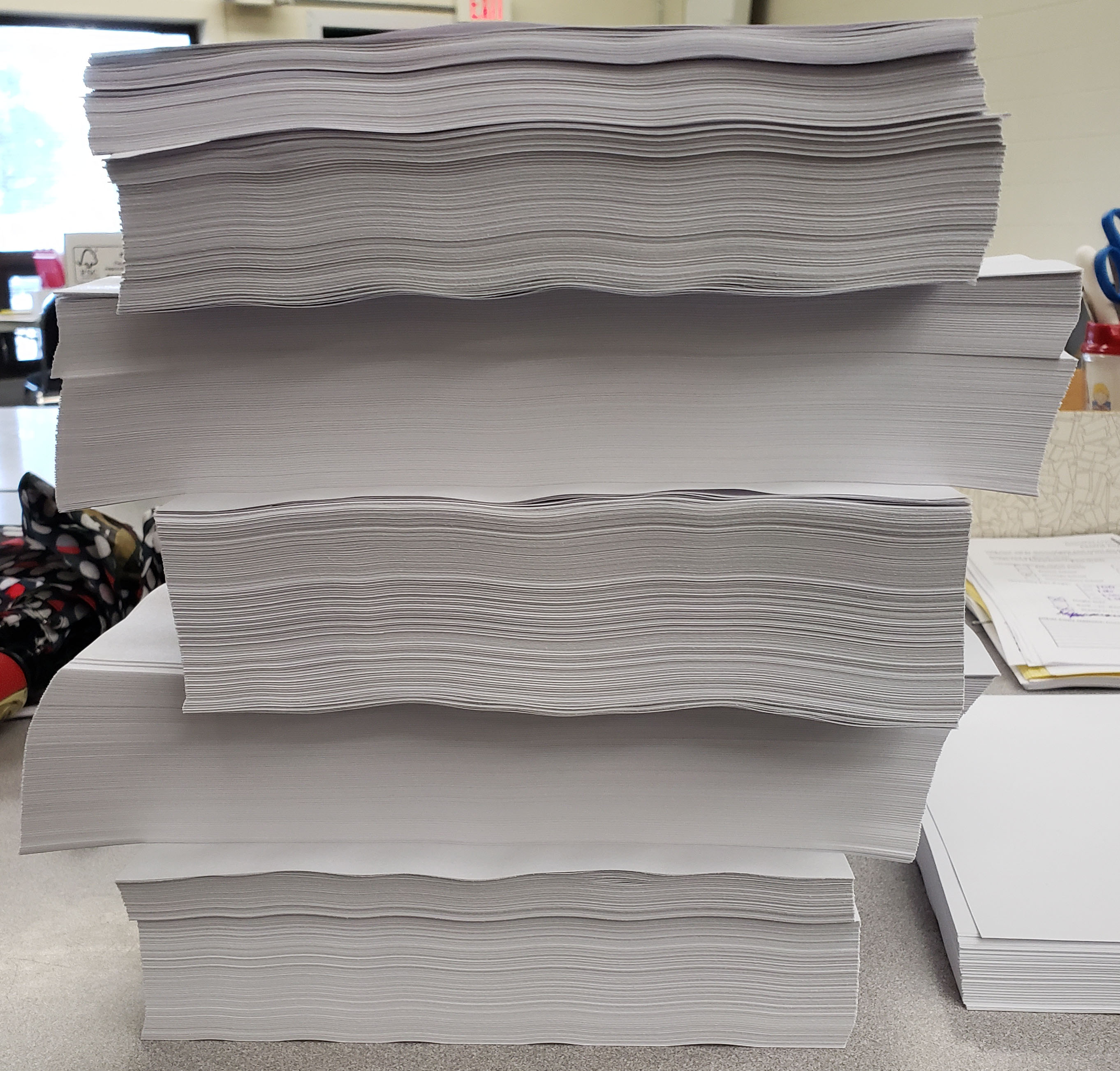
These conditions can contribute to issues such as paper jams, poor print quality, paper feeding problems, or other frustrating surprises when you return. The good news is that preparing your print device for an extended absence doesn’t have to be complicated.
A few minutes of preparation before you leave can help reduce the chance of problems later and get your device ready for its time off, too.
Consider the Environment
Before you leave, think about the environment your print device will be sitting in while you are away. Will the office temperature remain consistent? Will the heat or air conditioning be turned down? Is the device located near a window, vent, or other area where it may experience changes in temperature or humidity?
These factors may seem minor, but they can affect your printing supplies. Paper is particularly sensitive to moisture. When paper absorbs too much moisture, it can become more difficult to feed properly through a printer and may increase the chances of the above issues.
Taking the conditions of your workspace into consideration is an important part of preparing your device. After all, caring for your printer involves more than just the printer itself.
How to Prepare for Time Away
Once you’ve considered the environment, it’s time to get your print device ready. Before you head out, use this quick checklist:
Remove paper from the tray: Remove the paper from the tray to help prevent it from being affected by changes in the environment. Any paper out of its original packaging should be placed in a bin, plastic bag or other sealed storage with a desiccant pack to prevent moisture form soaking into the paper.
Keep extra paper sealed: Store unused paper in its original, unopened packaging until you are ready to use it. This paper should also be sealed in a plastic container or bag to keep out moisture as well.
Check manufacturer recommendations: Some devices have specific instructions for extended periods of inactivity, including recommendations for cleaning or powering down.
Taking these few steps before you leave can help your print device rest well while you are away. And when you’re ready to come back, you’ll have one less thing to worry about.
When You Return
You’re back in the office, your inbox is full, and you’re ready to get to work. Before sending that large print job, take a few minutes to make sure your device is ready, too.
Use this quick return checklist:
Reload the paper: Take paper out of sealed storage, check that there has been no moisture accumulation or warping of that paper and then load back into the device.
Look for dust or debris: Give the device a quick visual check and clean any accessible areas as needed.
Run a test print: A quick test can help you catch streaking, faded areas, or other print quality issues before you start a larger job.
Address any problems: If you notice paper feeding issues, poor print quality, or other problems, consult your device’s troubleshooting instructions or contact your service provider before continuing with larger print jobs.
A quick check before jumping back into your normal printing routine can help catch small issues before they become bigger ones.
A Little Preparation Goes a Long Way
Adding your print devices to your out-of-office checklist may not be the first thing that comes to mind, but it can make your return much easier. Taking a few minutes to clean your device, protect your paper, check your supplies, and consider the environment can help reduce preventable printing problems.
So, before you lock up and head out for your next extended break, don’t forget to give your print devices a little attention. Your future self—and your printer—will thank you.